

In the first post, I described the concept: a tool that lets clients upload a photo of their wall, choose from my fine art prints, and see how a framed print would actually look in their space before buying. I also described the setup - a fresh WordPress install on a subdomain, which I’d recommend to anyone considering something similar. Do not do this on a live site while the kinks are still being worked out.
Part two is where the kinks get worked out. Or at least, where you find out how many there are.
The PhotoShelter API Problem
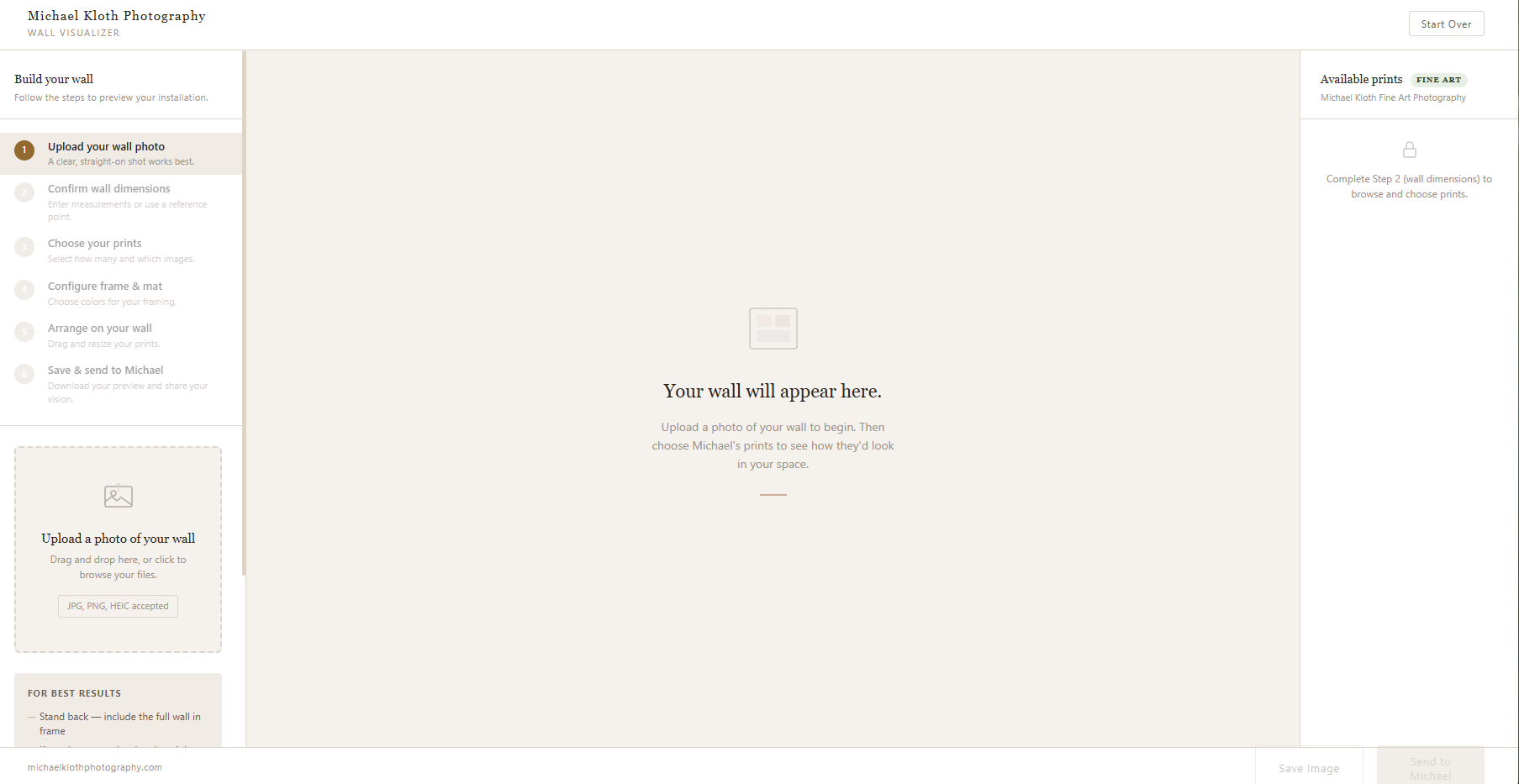
The original plan included pulling images directly from my PhotoShelter galleries into the visualizer automatically. When the API documentation finally arrived, it became clear that wasn’t going to work the way I’d imagined. The API was designed to import images into WordPress for blog posts, one at a time. Not a feed. Not a dynamic gallery pull.
The workaround is a local image library that mirrors the store’s fine art print listings, either pulled from PhotoShelter manually or uploaded directly. Less automated than planned. That’s a limitation of PhotoShelter’s API design, not of the app itself.
For client-specific previews, the solution is more manual still. Images will be uploaded and tagged with client-specific identifiers, and clients will get a version of the page that only surfaces their tagged images. Clunkier than envisioned. Workable enough to run a trial.
The Iteration Loop
Once the image library question was sorted, the focus shifted to getting the “Send to Michael” functionality working - the piece where a client submits their visualization to me with the print dimensions baked in.
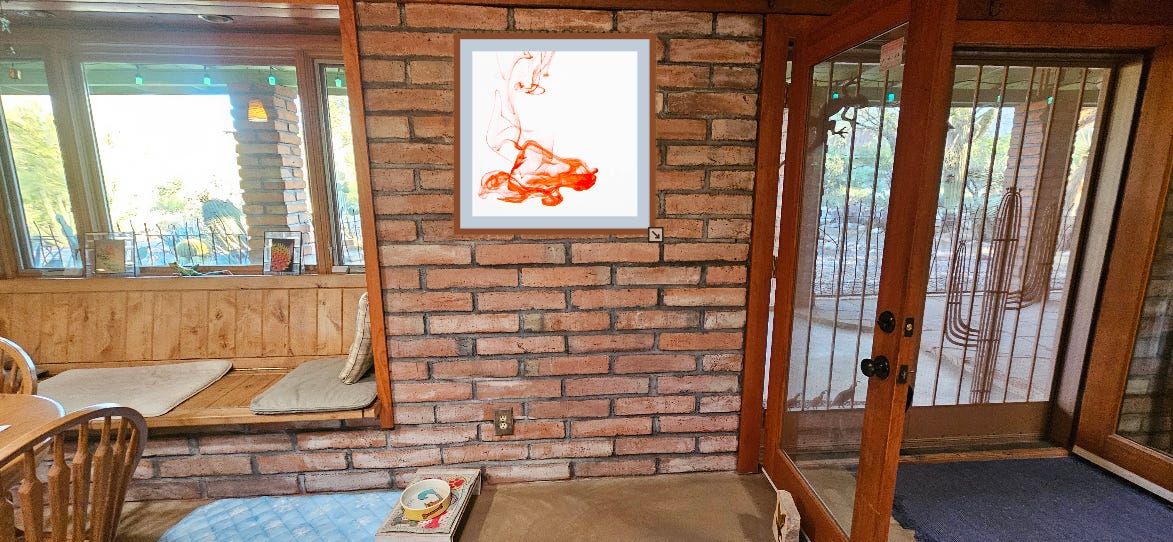
The basic flow: client places a print on their wall photo, the app saves the image to their downloads folder, a contact form appears, they fill it out and submit, I get an email with their name, contact information, and the print specifications. Straightforward in concept.
Getting the Contact Form 7 ID wired correctly was the easy part. One URL in the browser address bar, one number to plug in.
What followed was a long afternoon of screenshot-and-iterate. Make a change in WordPress or the file manager, share a screenshot, get a diagnosis, make another change, share another screenshot. This is the actual texture of vibe coding, and it’s worth describing honestly: it’s not “describe what you want and it appears.” It requires you to stay oriented through a lot of small adjustments, and it requires enough working knowledge to recognize when the conversation has gone off track.
Which it did. For most of the afternoon.
The CORS Problem That Wasn’t
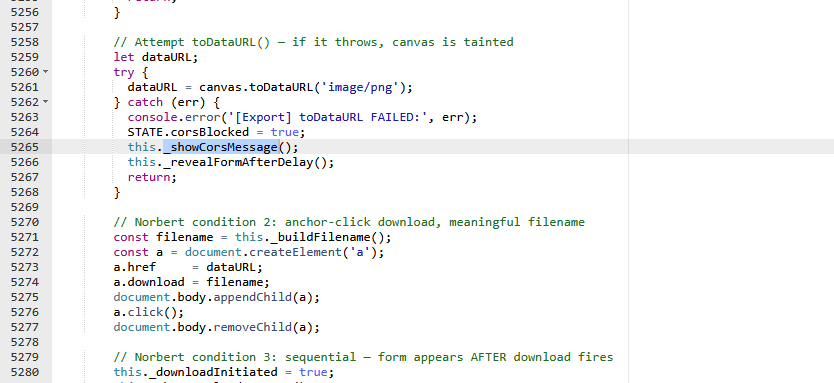
The tool spent several hours diagnosing a CORS error. CORS - Cross-Origin Resource Sharing - is a real thing, a browser security mechanism that can block canvas exports when images are loaded from other domains. The symptoms looked plausible. The fixes were technically reasonable. Headers were added to WordPress. Image loading code was updated. Debug logging was added to catch errors that weren’t appearing.
None of it was the problem.
The download was working the entire time. The image was landing in the downloads folder on every test. The CORS diagnosis was a confident wrong answer, pattern-matched against plausible explanations rather than the actual evidence. By the time that became clear, the afternoon was gone.
The real issue is simpler and still unresolved: after the download fires, the contact form is supposed to appear. It doesn’t. The code that should trigger it is there. It’s just not working. That’s where things stand.
What This Is Actually Teaching Me
The learning was the stated goal going in, and the learning is happening, even when the tool is wrong.
A few things I now understand better than I did a week ago: WordPress serves as both the CMS and the API layer here, and those two roles create friction when you’re building something outside the normal template flow. The visualizer is a standalone HTML file living in a theme folder, which means it doesn’t automatically inherit WordPress’s authentication tokens or other values the rest of the site takes for granted. Each of those has to be deliberately wired.
The more useful lesson is about the limits of the collaboration itself. The tool can’t actually see your screen. Every diagnosis is an inference from whatever you can describe or screenshot. When the symptoms are ambiguous - and a download that works while a form doesn’t appear produces ambiguous symptoms - the tool will generate confident explanations that are plausible but wrong. Recognizing that pattern, and being willing to stop and reframe rather than keep patching, is a skill the tool can’t supply.
Nine months of working closely with these tools has given me enough of a working vocabulary to follow the logic and recognize when the conversation has gone circular. That’s not the same as knowing how to fix it. It’s enough to keep moving, and to know when to stop for the day.
Where Things Stand
The frame and mat color selectors work. The wall size calculation is correct enough. The image placement and resize work. The download works. What doesn’t work yet is the contact form appearing after the download - the piece that makes this a two-way tool rather than a visualization toy.
I’ll finish it. The workable tool as the cherry on top. That’s still the goal.